Monday, October 19, 2015

My experience at DH2015

From the 25th of September until the 2nd of October I have been volunteering at Digital Heritage 2015 in Granada.  I feel very happy to have made the decision to go, since besides spending a great time there it has opened many new doors.

Granada is a very friendly and beautiful city, host to the World Heritage Sites of Alhambra, Generalife and Albaicín. As part of the congress programme we had the chance to visit some of these sites, as well as to attend a full day cultural visit to Córdoba, Úbeda-Baeza or La Alpujarra, at choice.

Welcome reception at Carmen de los Mártires
Although I had already been to Granada a couple of times, I had never visited Carmen de los Mártires or La Alpujarra before. It has also been my first time at Alhambra by night, which has been another well worth visit. The feeling you get in the moonlight is very different from the one you get during the day. Anyway, Alhambra is a place that never ceases to amaze the visitor, no matter how many times you have been there.

Visit to Alhambra
We spent the second evening walking around Albaicín and topped it up with a nice dinner with tapas. It was funny to discover that some of the attendants had been following us, the volunteers, on our way to the restaurants. "You look like you know where you are going" - they said. So they joined us and we had a really great time. It's very unfortunate that nobody thought of taking a photo all together.

Walking tour in Albaicín
The third day was resting day for some and cultural visit for others. I went to La Alpujarra, since it was the only place among the options available where I had not been yet. This is a region in Sierra Nevada full of vegetation, valleys and beautiful landscapes, along with some very interesting towns that have been built to adapt to slopes.

La Alpujarra
On Thursday there was yet another social event, the Gala dinner. The restaurant was beautifully decorated in Arabian style, belly dancers included, and food was delicious. This was an unexpected and pleasant surprise.

Gala dinner
These occasions have been very interesting and useful to me because, besides the fun, here is where you get to talk to people. Without them I would have had little chance to have a personal talk with anyone outside the staff.

Aside from the social events there was of course a lot of work to do and tons of presentations to attend and projects to try at the exhibition hall. We as volunteers didn't get much sleep during the week, since we had to be at the venue very early every day to prepare everything. But on the other hand I could also attend most of the presentations I was interested on, so it has been a great and profitable experience.

As for the sessions, almost all of the presentations that I attended were related to interactive applications and storytelling. Most of the projects used similar technologies and techniques to create and present the contents and to allow interaction: laser scanning and/or photogrammetry to create the models, web-based or phone/tablet applications, AR, Unity, Oculus Rift or Samsung Gear, Kinect. Although it was interesting to see the different approaches, few projects were truly innovative. The highlights for me would be the following:


The tutorial on Monday by Federico Fasce "Developing a Mixed Reality Interactive Application for Cultural Heritage" was also very interesting. He talked about game design and showed us how to create AR and VR applications in Unity.

Developing a mixed reality interactive application tutorial by Federico Fasce
In the exhibition area I personally liked the MeSch project a lot. It consists of a custom device and a web-based application that allows to enrich physical artifacts with digital content in a very easy way, triggering different contents depending on the proximity of the visitor, its age, etc. The device uses a NFC reader, IR sensors, an Arduino Mini, a Raspberry Pi and a projector. Dario Cavada kindly explained how their device was built and how to set-up the different contents, and I was really impressed. You can read more about creating the meSch cases on their blog.

Digital Heritage Expo
MeSch project
I am very grateful to have had the chance to participate in such an event. The whole experience has been very intense and rewarding, from the organizational point of view as well as for the contents and the interpersonal relationships. I am now more aware of what's going on in the field of digital heritage, plus I have met many people and even made some good friends among the other volunteers. So guys, if you are reading this, thank you all for your hard work, your good mood and your friendship! And thanks as well to my flatmate Jae-Hong Ahn, a Korean researcher who happened to book a room in the same flat as me, for being such a friendly and nice companion!

Volunteer team
Finally, to put the icing on the cake, I got a few job opportunities out of this! So I would recommend you all to do something similar if you ever get the chance :-)

Thursday, September 17, 2015

Lund1658: Project setup

Creating the project

The very first step is to create a new project and define its structure. First I created several folders under "Assets" (right-click on the folder and select "Create > Folder") and a scene called "Main" under the folder "Scenes" ("File > New Scene" and then "File > Save Scene As").

Assets folders structure
Next I created a basic hierarchy that will allow me to find and work easily with all the objects in the scene. My approach has been to create an empty component "Museum" with a child for each of the sections in it (right-click on the Hierarchy view and select "Create Empty". Select the component and press F2 to rename). As children of these sections I created empty components for each of the tables in them, which will hold the meshes of the exhibits. At the same level as the sections I created another child called "Building" that will hold the mesh of the museum.

Main Scene's hierarchy

Importing the assets

The Blender file can be imported directly into Unity by dragging and dropping it into the Assets folder in the Project window. Another option is to export the meshes as FBX, OBJ or any other suitable format, then right-click on the assets folder and select "Import > New asset".

In  my case I went through with the first option and dropped the file into my "Assets/Models/Environment folder". The mesh objects are created automatically and all the materials are placed in a sub-folder called "Materials".

Assets created by Unity after importing the Blender file
Next I needed to import the textures and assign them manually. First I created a folder called "Textures" and imported all the image files by right-clicking on it and selecting "Import > New asset". Then I visualized each of the materials on the inspector and assigned the corresponding texture to the Albedo Map property.

Assigning textures to materials (standard shader)
In the cases in which the material in Blender had not been named, the same default material was created and assigned to the meshes. To solve this situation I created new materials manually and assigned them to the meshes by dragging and dropping them onto the mesh prefabs. Next I assigned the corresponding texture as explained previously.

In the case of the cupola Unity assigned a Transparent/Diffuse shader to the material. In this case we assign the image to the only texture slot available on its properties.

Assigning textures to materials (transparent diffuse shader)
Once all the materials have been assigned the museum looks like this:

Museum building after import and application of textures
In the case of the exhibits I had them exported to OBJ and then I imported them into Unity by using the "Import > New asset" contextual menu. The objects happened to be too big in proportion to the size of the museum and so they needed to be resized. This can be done in several ways and I chose to do it at import time.

To do this we just need to select the imported asset and visualize it on the inspector. Here there is an option "Scale factor" (located under the section "Meshes" of the tab "Model") that can be used to change the size of the mesh. After setting it to the desired value we need to click on "Apply" to make the changes effective.
Imported OBJ as seen on the inspector

Placing the assets in the scene

The next step is to fill our scene with objects. To do this we first drag and drop the "Museum" prefab from the "Assets > Models > Environment" folder into the "Environment" folder in the hierarchy. The prefabs for the Tables and Chairs can then be dragged into their corresponding section, leaving only the "Building" prefab inside the "Environment" folder. The exhibits are dropped next into their corresponding tables and renamed for clarification.

Placing objects in the scene
The objects can then be placed on their final locations by using their Transform. Simply select the object and set the desired location coordinates and rotation on the inspector.

Setting Transform parameters for the exhibits
To simplify the placement of the objects and scripting later on, I have applied the location coordinates of the tables to the Transforms of the Table components (Table_Inh_1, Table_Ind_1, etc.) holding the prefabs instead of to the prefabs themselves. The reason is that the transforms applied to their children will be local to these components, and it will be much easier to work with local coordinates than with global ones. For instance, when I place a Table mesh at (0, 0, 0) inside the "Table_Inh_1" component the former will be placed at the right location. Then if I want to place an exhibit on top of this table, right at the center, I can simply drag it into the same component "Table_Inh_1" and place it at (0, HEIGHT, 0).

Following a similar reasoning, all the transforms used to place the exhibits on their initial locations on the tables have been applied to the mesh objects instead of the parent component that holds them (for example, to "Tobacco_mesh" instead of its parent "Tobacco"). The reason is that I will want to provide the user with the option to inspect the exhibits closely and apply rotation, and I will want the exhibits to go back to their original transforms (location, rotation and scale) when exiting the inspection mode. My idea is to apply all of these "user transforms" to the parent component (e.g. "Tobacco") when in inspection mode, so that I will always be able to reset the exhibit to its original position by setting its parent's Transform back to rotation (0, 0, 0), no matter what the exhibit's initial condition was.

Finally, table rotations have also been applied to their meshes.

The following schema is an attempt to illustrate the previous explanation taking the Industry section as an example. The first table in this area of the museum holds two exhibits, a tobacco package and a mouthpiece. The corresponding transforms are indicated next to each of the components:

Industry - Position (0, 0, 0), Rotation (0, 0, 0)
|-- Table_Ind_1 - Position (X, Y, Z), Rotation (0, 0, 0)
     |-- Table_mesh - Rotation (X, 0, 0), Position (0, 0, 0)
     |-- Tobacco - Position (-POS, HEIGHT, 0), Apply User Transforms during inspection
          |-- Tobacco_mesh - Position (X, Y, Z), Rotation (X, Y, Z) = default position
     |-- Mouthpiece - Position (POS, HEIGHT, 0), Apply User Transforms during inspection
          |-- Mouthpiece_mesh - Position (X, Y, Z), Rotation (X, Y, Z) = default position

X, Y, Z indicate any transform values, since the real ones that I used are irrelevant for the explanation.
POS and -POS are lateral displacements relative to the center of the table (0, 0) that allow the two exhibits to be placed one next to the other.
HEIGHT is the value needed to elevate the exhibits from the floor to the table's surface.

Tobacco package and mouthpiece

Tuesday, September 8, 2015

Lund after 1658 (remastered)

As I mentioned on my first post, back in 2009 I created a small virtual museum as my Master Thesis. The project was called "Improving the experience of exploring a virtual museum: Lund after 1658" and included laser scanning of several objects ceded by the Kulturen museum in Lund (Sweden), and implementation of an interactive application. It was my first time at many things: laser scanning, 3D modelling, writing a long report in English... :-) So some of the things that I wrote now hurt my eyes, plus the modelling was quite poor since it was (and still is) out of the scope of my expertise. But even so it turned out to be an enjoyable experience and a very interesting and exciting project to me.

Some views of the original virtual museum

The application was implemented in EON Studio and is no longer available due to license restrictions. Because of this and the poor quality of the models, something that I have been willing to do since then is to re-implement the application and improve it. I'm not sure I can do much to improve the meshes of the scanned objects without having the originals, plus my modelling skills at the time are not much better than before, but at least I can bring the application back to life by using Unity this time.

So far I have started with the modelling of the new environment. It's too bad that I don't have anyone to help me with the assets, so I apologize in advance for any visual pain caused :-)

Distribution of exhibits by subject in the original virtual museum
3D model of the new museum building

The shape and distribution of the new museum has been redesigned to resemble more closely that of a real museum and to enhance communication between the different rooms. Additionally there are now more decorative elements such as arches, a garden or the use of a stained-glass texture for the cupola. As for the models of the exhibits, for now I will use the original ones.

Some of the objects exhibited in the virtual museum

Next I will focus on the creation of the project in Unity, importing all the assets and implementing a basic walk-through with collision and proximity detection.

Tuesday, August 25, 2015

[Unity 3D] Tutorial 4: Roguelike

It's been almost three weeks since I finished this tutorial and it was about time that I wrote a post about it. It's been a very interesting one, since it introduces procedural generation of levels and tile-based scenes for the first time. With this one we also move from basic to intermediate difficulty.

The project is called Roguelike because its elements are based on "Rogue", a computer game that was released in 1980 and which established a new video game subgenre. Roguelike games are 2D and tile-based, with levels generated procedurally and a turn-based gameplay. Another characteristic is the so called "permadeath", which means that when the character dies the player has to start all over again from the beginning.

Setup
The first part of the tutorial focuses on creating game elements out of the sprite assets so that we can use them later on in our game. We learn to create animations from sprites, which basically consists on dragging the desired sprites from the sprite sheet and dropping them on to the corresponding game object. This will create the animation, an AnimationController and a SpriteRenderer components automatically. One of the important things to set properly when working with sprites is their render order in the scene, so that we can establish which ones will be rendered on the foreground and which ones on the background. This is done by setting the sorting layer attribute on the SpriteRenderer component.

Next we need to create the tile prefabs that will be used in the procedural generation of the levels. This is again very simple, since we just need to create an empty GameObject and add a SpriteRenderer component to it, in which we will set the sprite that we want to use and its sorting layer.

Game logic
The game logic is taken care of mainly by the GameManager script, which is in charge of initializing the scene every time a level is completed and managing the turns. Initialization of a level consists of generating a new board and setting the UI to show the player which level we are going to play next. The GameManager makes sure that neither the enemies nor the player can move until initialization has been completed with the use of boolean flags.

Turn management also makes use of flags to decide whether the enemies or the player can move. It will be the player's turn until the user moves, and then it will be the enemies' turn until all of them have moved. Movement and actions performed by the units are managed by separate scripts (Player and Enemy, which inherit from a common script MovingObject).

Finally, the GameManager takes care of showing the game over message when the player has run out of lifes (in this case, when he has no food left).

New useful commands introduced in the GameManager script are:

  • DontDestroyOnLoad (GameObject): Don't destroy the game object when loading a new scene, which is the default behaviour. This allows to keep track of values such as the score throughout the levels.
  • Invoke ("NameOfMethod", delay): Automatically call a method after the specified delay in seconds has passed.
  • Use of the attribute [HideInInspector] to serialize a variable without it being visible in the inspector
Generation of levels is delegated to the BoardController script through the method SetupScene(int level). The level number will be used to calculate how many enemies will be placed on the board, making the difficulty increase logarithmically.

To understand how the Board works we need to picture it as a grid of N x N positions. The outer ring of this grid won't be usable, which means that the player and the enemies won't be able to walk here. Instead it will be filled with outer wall tiles to visually delimit the playing area, which will therefore have N-1 x N-1 positions. The area inside this ring will be filled with floor tiles.

Next we need to place the Exit tile and fill the board with items. To avoid generating impossible levels we will leave a second outer ring free of obstacles and always place the Exit tile at the top-rightmost position of this ring (see the image below for reference). The area available for placing enemies, walls and food will therefore have N-2 x N-2 tiles.

We will use a list of Vector3 to store the x,y positions available within this N-2 x N-2 grid that we have defined. Then we will place a random number (within specified min and max limits) of walls and food on those tiles, which will be randomly selected from the list. As soon as we place an item on a tile we need to remove it from the list to avoid placing more than one item on the same place. Since we have several sprite variations for each type of element we will also select which sprite to use at random.

In the case of the enemies the process is practically the same, with the only difference that we will always place an exact number of them depending on the current level.

Note that enemies, walls and food elements are being placed at the same position as the floor tiles that we set above. Here is where having set the sorting layers correctly will come in handy.

Highlights of this script are:

  • Using an empty GameObject created programatically to set as parent for all the sprite prefabs instanciated. Doing this will allow us to keep the Hierarchy view clean while running the game.
  • Defining a singleton class by using a static reference to the only instance allowed
  • Use of the attribute [Serializable] as opposed to implementing the interface Serializable in Java

Interaction of units
This part of the code has been implemented in a very smart way. I will try to explain it as clearly as possible.

Players and enemies share the fact that they can move around a delimited area. The best way to deal with this is to implement the code that allows them to move in a common place so that the Player and the Enemy scripts can share it. This place is the abstract class MovingObject from which both scripts inherit.

The MovingObject script takes care of determining whether a unit can or can't move, and to perform a different action depending on the case. A unit won't be able to move when a ray cast from the current position to the final position hits anything in the blocking layer. Enemies, walls, the exit tile and the player are placed on this layer.

When a unit can move, a smooth movement towards the final destination will be performed. This behavior is the same for both the player and the enemies, and so it's implemented as a shared method in the parent class (SmoothMovement). But when the unit can't move, we will want something different to happen whether the unit is an enemy or the player. First of all, the type of object with which each of them can interact differs: the player can only interact with walls by breaking them, while enemies can only attack the player. And secondly, the animation and sound effects that we will show will be different on each case.

The way this is done is by defining an overridable method AttemptMove in MovingObject:

protected virtual void AttemptMove<T>(int xDir, int yDir) where T:Component

This is a template method that will allow the child classes to use it with different types of objects. In the case of Player, the method will be invoked as AttemptMove<Wall>, since we are expecting to collide with a Wall. In the case of the enemies, it will be invoked as AttemptMove<Player> because we are expecting to collide with it. This solves the first part of the problem.

To define what happens when the movement attempt has failed, the Player and the Enemy scripts implement the abstract method OnCantMove. Here is where the animation triggers are set, the sound effects are played and the damage to either the wall or the player is inflicted. This is the method signature on the child classes:

protected override void OnCantMove<T>(T component)

Highlights of these scripts are:
  • Using templates: using the syntax "where T:Class" as opposed to the Java syntax
  • Overriding methods: 
    • Usage of the modifiers "virtual" and "override" as opposed to the annotation @Override in Java
    • Usage of base.Method() as opposed to super() in Java
  • Usage of two different casting methods: 
    • Prefix-casting: MyType var = (MyType) aVar;
      • Throws an InvalidCastException if not allowed
    • As-casting: MyType var = aVar as MyType;
      • Returns null if not allowed
      • Better performance than prefix-casting
  • Finding out that multiplying is more efficient than dividing in C#

Picking up food
The food pick-up is implemented in the Player script on the OnTriggerEnter2D method, which is a Unity core callback called whenever an object enters a trigger collider attached to the current object. Here the tag assigned to each of the objects is used to distinguish whether we have collided with food or soda. Depending on the case, we will increase the food points by a different amount and play different sound effects.

Loading a new level
Collision with the Exit prefab is also detected on the OnTriggerEnter2D callback by using its tag. In this case we will invoke the Restart method after a specific delay with the use of Invoke, just as we did in the GameManager. The method Restart will simply reload the current level as follows:

Application.LoadLevel (Application.loadedLevel);

Now we will use another Unity callback, OnLevelWasLoaded, to update the level number and initialize the new board. We will place its implementation in the GameManager. This method will be called every time a scene is loaded. 

Other scripts
The Wall and the SoundManager scripts won't be discussed here as they are not particularly complicated. I will only mention a new syntax used in the SoundManager because it's new to me:
  • Usage of the syntax "params Class[] elements" as opposed to "Class... elements" in Java to send multiple arguments to a method

Adding mobile controls
Two new features introduced on this tutorial are the possibility to execute different codes depending on the device on which the game is running, and getting input from a touchscreen.

          #if UNITY_EDITOR || UNITY_STANDALONE || UNITY_WEBPLAYER

               //Get input from keyboard as we have done so far

               int horizontal = (int)Input.GetAxisRaw ("Horizontal");
               int vertical = (int)Input.GetAxisRaw ("Vertical");
                    ...

          #else

               //Get input from touchscreen

               if(Input.touchCount > 0) {
                Touch myTouch = Input.touches[0];
                if(myTouch.phase == TouchPhase.Began) {

                //The finger has touched the screen
                //Save the starting position of the stroke
                touchOrigin = myTouch.position;

                } else if(myTouch.phase == TouchPhase.Ended && touchOrigin.x >= 0) {

                 //The finger has lifted off the screen
                //We also check that the touch is inside the bounds of the screen
                Vector2 touchEnd = myTouch.position;
                float x = touchEnd.x - touchOrigin.x;
                float y = touchEnd.y - touchOrigin.y;
                touchOrigin.x = -1;

                 if(Mathf.Abs(x) > Mathf.Abs(y)) {
                 //The touch has been more horizontal than vertical
                 horizontal = x > 0 ? 1 : -1;
                 } else {
                 vertical = y > 0 ? 1 : -1;
                 }
              }
              }

          #endif


If you have reached this point of the post I think you well deserve a break, so now it's time for you to play. Thank you for reading!

THE WEBGL BUILD DOESN'T WORK PROPERLY AT THE MOMENT. MEANWHILE YOU CAN DOWNLOAD THE VERSION FOR PC HERE. SORRY FOR THE INCONVENIENCE!


Final words
I thought that this would be the last game tutorial before my first solo project, but things have changed a bit. The Unity guys have come up with some new training projects, and there's also an updated version of the Survival Shooter for Unity 5.x. that I would like to check. So the good news is that learning opportunities increase and there's going to be a lot more after this :-)

Wednesday, August 5, 2015

DH2015

After the third Unity tutorial I could not continue with the 4th and last one (Roguelike). The reason is that I signed up for a course in development of AR applications for Android that has kept me busy for the whole month of July. I will write a separate post about its contents and what I've learned.

In another turn of events, a few weeks ago I was checking out this year's edition of Digital Heritage. This is an international congress focused on the application of IT to cultural heritage, therefore bringing together professionals and researchers from both fields. The first edition was in Marseille in 2013 and the second edition will be this year in Granada, which is quite fortunate since I live in Spain. There are several workshops and presentations that would be very interesting to attend, specially the ones focusing on interaction in virtual environments and serious games. Networking is also one of the major benefits of going. Therefore I have decided to participate as a volunteer. I sent my application and they have already accepted, so I'm heading to Granada in September :-) I'm sure that it's going to be a very interesting experience no matter what, but hopefully my working shifts will also allow me to attend the events that I'm interested on. So let's hope for the best!


Wednesday, June 17, 2015

[Unity 3D] Tutorial 3: Survival Shooter

This is a top down isometric style game in which you basically need to shoot everything that moves to survive (a.k.a. survival shooter). You impersonate a boy who's dreaming that all of his toys have come to life. This is the last beginner level tutorial and covers the following topics:

  • Use layers to isolate game objects
  • Animations: use and control transitions in model animations, animate GUI objects
  • Ray casting
  • Input.GetAxis vs Input.GetAxisRaw
  • Movement normalization
  • Time.deltaTime
  • Use Lerp to smoothen transitions
  • AI: use NavMesh, bake a navigable area
  • More on GUI components (CanvasGroup, Slider, Image, etc.)
  • Awake method
  • LineRenderer
  • Alternative method for timers: InvokeRepeating

These are the main modifications I made to make it work in Unity 5:

  • Disable the flag "Has Exit Time" so the animations are in sync with the events. This cancels the ongoing animation when there is a transition to another state
    • Open the Animator Controller
    • In the Animator window, select the transition to modify
    • In the Inspector, locate and uncheck the flag
  • Change the LineRenderMaterial to use an Unlit/Color Shader. The LineRenderer renders the lines black under certain shaders.

The export to WebGL in this project is not so good. The scene appears very dark and the textures have some kind of black spots, but it should look like on the image below. I believe this is because of the preview version of the WebGL player, or maybe due to incompatibility of the assets with Unity 5. Anyway the game is playable, so give it a try and let's see how much you can last!


Thursday, June 11, 2015

[Unity 3D] Tutorial 2: Space Shooter

In this second tutorial they teach you to make a very basic top down space shooter. There is a little more scripting than in the first one and involves using more game objects and features. You learn to:
  • Change the resolution of the game
  • Modify and save a layout
  • Import assets from the Unity Asset Store
  • Work with mesh models, textures and materials
  • Use mesh colliders and capsule colliders
  • Instantiate and destroy prefabs
  • Add background music and sound effects 
  • Use tags to identify game objects
  • Work with coroutines
  • Use the yield instruction
  • End a game and reload it
  • Use methods and parameters like Mathf.repeat,Time.time or angularVelocity
  • Differentiate between screen space and viewport space
The tutorial is again very easy to follow, but it has been developed in Unity 4. If you are using Unity 5 then you will need to make a few modifications to make it work:
  • Mesh colliders won't work unless you enable the Convex flag
  • Some static references such as rigidbody have been removed:
    • Unity 4: 
      • rigidbody.AddForce(movement);
    • Unity 5: 
      • RigidBody rigidbody = GetComponent<Rigidbody>();
      • rigidbody.AddForce(movement);
  • The render settings menu has been moved:
    • Unity 4:
      • Edit > Render settings
    • Unity 5:
      • Windows > Lighting
  • The GUIText is no longer accessible from the Create menu. In Unity 5 you need to create an empty game object and then go to Add component > Rendering > GUIText
And that's all I can remember at the moment. I encountered some of these issues already in the first tutorial but I forgot to mention them in the post.

Finally I added a couple of extras to try new things and make it a bit more interesting: a scrolling background and a blinking text. I will explain how to do it at the end of the post in case someone is interested. I could have added more things like parallax or smarter enemies, but I just want to move on to the next tutorial :-)

And here's the result:


Input settings:
- Move with the arrows
- Shoot with the space bar or the left mouse button


How to make a 2D scrolling background

For the background I followed this live trainning session, which shows several ways to do it. I tried the first two and in the end I kept the version that uses the texture offset to create the effect.You just need to create a Quad, assign it the desired texture and add the following script to it:

public class OffsetBackground : MonoBehaviour 
{

public float scrollSpeed;
private Vector2 originalOffset;

void Start ()
{
originalOffset = GetComponent<Renderer> ().sharedMaterial.GetTextureOffset ("_MainTex");
}

void Update () 
{
float offsetY = Mathf.Repeat (Time.time * scrollSpeed, 1);
Vector2 offset = new Vector2 (0, offsetY);
GetComponent<Renderer> ().sharedMaterial.SetTextureOffset ("_MainTex", offset);
}

void OnDisable ()
{
GetComponent<Renderer> ().sharedMaterial.SetTextureOffset ("_MainTex", originalOffset);
}
}


How to make a blinking text

Making a text blink is very simple. You just need to set the text of the GUI element to blank for a few seconds and then back to its original text for a few more seconds, alternatively. In my case I used it for the "Press 'R' to restart" label.

First I created this coroutine:

IEnumerator BlinkRestartText()
{
while(restart)
{
restartText.text = "Press 'R' to restart";
yield return new WaitForSeconds(blinkingRate);

restartText.text = "";
yield return new WaitForSeconds(blinkingRate);
}
}

And then modified the SpawnWaves method as follows:

if(gameOver) 
{
restart = true;
restartText.text = "Press 'R' to restart";
StartCoroutine(BlinkRestartText());
break;
}

That's all. When the game is over the coroutine is launched and runs until the restart flag is set to false. This happens when the player presses R and the game is reloaded (the method Start will be called by Unity). As for the content of the loop, it will first of all set the text in the GUIText object and wait for a few seconds, and then set it to blank and wait for a few more seconds, and so on. The use of the yield instruction ensures that the game won't be paused while waiting, and that the function will continue from the line after the yield after the wait is over.


Tuesday, June 9, 2015

[Unity 3D] Tutorial 1: Roll a ball

Last week I finished the first Unity tutorial. They have a bunch of them on their website for both beginner and intermediate users, and they are really well explained. You can choose between two learning paths: a set of projects with increased difficulty, and a set of lessons sorted by topic. Personally I think it's best to start with the projects and check the topics as you need them.

In the first tutorial you get to learn the very basics of Unity:

  • Create a scene
  • Add game objects to a scene and enable/disable them as needed
  • Use scripts to define behaviors
  • Convert a game object into a prefab that you can reuse
  • Read keyboard inputs
  • Create a camera that follows the player
  • Basics of physics and collision management, and some hints for its optimization (Rigidbody, static and dynamic colliders)
  • How to display text
  • How to export a game

Here's my version exported as WebGL:


Wednesday, June 3, 2015

Focusing

After doing some research I have come to the conclusion that I want to be a serious games developer. That is, games whose primary goal is not to entertain, but to serve as a training or a teaching tool, to help marketing, etc. This doesn't mean though that these kind of games cannot be entertaining. In fact I believe that they should be, so they can better achieve their goal (specially if their aim is to be educational).

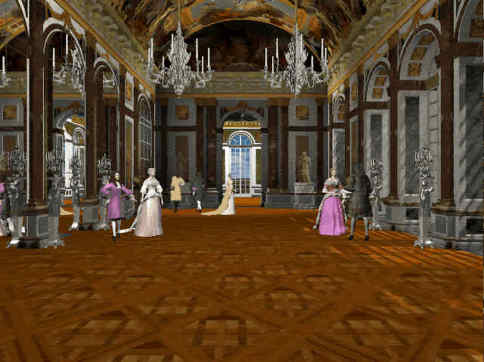
This being said, my focus of interest is still archaeology and history. The kind of games that I would like to make would use historically rigorous models, real stories and characters, and would be educational. I recall a game that I played during childhood and illustrates quite well what I have in mind. It's called "Versailles 1685" and I remember finding it very interesting at the time. What I liked about it is that it takes place in Versailles palace and you get to walk around its different rooms and areas, view and read about its paintings, meet many historical characters and learn about them and about life in the palace. Here some images of the game:


So now it's easier to know what I need to learn. I searched for job offers in serious games and game development in general, and the key skills that I will need are C++ and Unity 3D. Besides this, most of the offers require professional experience in game development, with at least one published game, and about half of them require to have a master in game development. Therefore I've been considering signing up for one of the two main masters in video game development that exist in Barcelona:
From the one taught by UPC I like that it's cheaper and as a UPC Alumni Premium member I get an additional discount :-D Also they use game engines, which would be useful to learn (I guess), and the master has for some reason more visibility among companies. The annual event in which students present their works is always full of people.

The one by UPF is more hardcore. They don't use any game engines and instead expect you to implement your own. I see it as a great learning experience. Another good thing about it is that they split the contents into two independent specializations: design and programming. That means that programmers can focus on just programming and skip the modelling and animation part. Finally, the amount of classroom hours is higher.

I was almost convinced by the one at UPF but a conversation with my boyfriend and several other friends who are professional game programmers walked me out of it. In their opinion masters are too expensive for the benefit they provide, and game companies don't care much about the education section after all. Companies value experience and motivation. Since I'm already a developer they believe that I can learn the same or more on my own. So their piece of advice is that I keep my money and start making copies of simple games or join an indie group. I just need to have a few small projects in my portfolio, know the main concepts in game development and be well versed in the language. And if they all agree on that then I guess they're right.

Next stop: becoming an indie game developer.

Thursday, May 7, 2015

Back in business

Hello again!

It's been more than one year since my first post and it may look like I have lost all my motivation THAT fast. Fortunately that's not the case, I just didn't have anything to write about in relation to 3D or Virtual Reality (not that I can write much about it today either, but today is a big day). But first things first, what have I been up to this whole year?

After quitting my job in February I had lots of time but no money. I had planned to attend the Italian Virtual Heritage School 2014 in summer, a 10-day long program organized by V-Must (Virtual Museum Transnational Network) in which I would learn the basics of virtual archaeology in a practical way: laser scanning, use of drones, photogrammetry, GIS, 3D modelling and so on. So I decided to look for a temporal job until the school started, and so in March I was already working at a new consulting company. It was more or less the same as my previous job (Java programming) but completely different at the same time. Smaller company, realistic timings for projects (no overtime!), great people (not that there were no great people at my previous job as well, but here every single one of them was awesome!), more innovative (thanks to my project leader!), and a more relaxed environment in general. Another difference is that it wasn't application maintenance, but a whole new project starting from scratch. This allowed me to learn things properly, and for that I am very grateful.

In May I received devastating news. The Italian Virtual Heritage School had been cancelled due to lack of attendants, but it might be postponed until October. There was still a chance. Several months passed and there were no news of the school ever starting, so fearing the worst I started looking for alternatives. The school never took place indeed, but I found an online Master program starting in November that was focused on Virtual Archaeology and Preservation of Cultural Heritage. It seemed to fit my needs and so I decided to sign up, but November came and there were no news again. I started to get really frustrated, like I would never be able to achieve what I wanted. I was being so unlucky! I must confess that the lack of news along with other aspects around this Master made me have serious doubts about it being a serious program, and I was considering giving up. Meanwhile I was still working at my temporal job and was feeling very comfortable and happy with it. I also took a course in Android development in November-December and I am now a certified developer, so I had new worlds to explore. But finally the news came and I knew that the Master would start in January.

January to March 2015 have been very busy. I tried to combine work with the Master, but the workload of my studies was too heavy to continue with both, so very sadly I had to quit my job in March. In April my boyfriend and I had decided to go on a trip to Japan, and we have spent the last 4 weeks there (amazing trip BTW). And I just came back 4 days ago, ready to take over the Master.

The last few days have been quite frustrating once more. I have little info concerning the contents of the Master, as little as just the names of the chapters and the name of the professors in some cases. And with some exceptions, so far the chapters have not been very useful to me while the workload is insane, and I am worried that the whole thing is going to be the same. I feel like I'm wasting my time, since I am above all a developer and I don't really need or want to write academical papers, or fund applications, or job offers (these are some of the activities that I have to deliver). I'm not saying that the Master is useless by itself, it's just not that useful for a person with my profile. So I am considering putting these studies in a second place, follow only those chapters that I consider useful and invest the rest of my time experimenting with new technologies. Learn by doing, that's the best way to go. The worst that could happen is not getting the Master certificate, which I don't care that much about. I believe that knowledge and experience are more valuable than a paper saying that I did this or that, as long as I can prove it somehow.

With these things in mind yesterday I sent an e-mail to my coordinator and I am now awaiting her response. I'm just hoping that she understands my point of view and won't take it in a bad way.

Today is a new day and I've been thinking on the next steps, I need an action plan.

Action Plan

  • Get to know the context
    • Read about what's out there in terms of software, devices and applications
    • Look for people and companies involved in the development of VR applications. Find out which are the desirable skills in a potential employee
  • Learn
    • Focus my efforts on learning the key skills to be hirable
    • Create demos for Android using AR. Maybe also for IOS.
    • Find out which applications/engines/frameworks are the most used in the creation of VR/AR applications (e.g. Unity, Unreal Engine) and create demos
    • Take whatever courses or workshops are available in relation to VR/AR
  • Create a portfolio
    • Create a website in which I can publish my demos (or use this blog)
  • Look for a job
    • Not any job, a job in the field :-)